Home
Welcome to the obsidian-canvas2document documentation!
This documentation is a work in progress and will be updated regularly. If you have any questions or suggestions, please feel free to contact me.
Canvase can easily look like this, with a very deep hierarchy:

When converting canvases into documents, you have to keep an eye on that the output is a document, i.e. something linear, while the canvas have a 2-dimensional structure.This means that the hierarchy in the Canvas cannot be adopted 1: 1 in the document.Even with the depth of the hierarchy, you have to keep in mind that a document cannot be nested infinitely deep.Markdown allows 6 levels in Obsidian, i.e. the marking with a maximum of 6 '#' characters.
Canvas2document tries to adopt the hierarchy as well as possible by reading the hierarchy in the canvas and transferring it into a TOC structure in the document.The hierarchy is converted into the 6 levels of the Markdown as well as possible.But in the document is the end of 6 levels.Thus, the outline looks like this for the corresponding document, with sub -chapters up to level 6, everything that is deeper is also placed on level 6.This means that the deeper elements are not lost, but only on a level and the parent-child relationship is preserved.

Multi references (child has multiple parents) is per default handled in a way that only one of references is read, so that the child appears only once on one of its parents.
Canvas2document Works in Documenting Context, keep in mind what you really want to have in the structure.It is primarily about transferring the elements completely, then adaptation by hand, mirroring diverse graph structures make no sense in the target document.
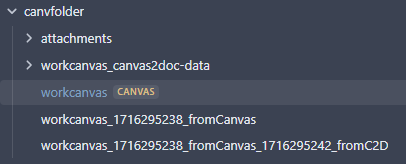
The conversion creates a Markdown file called <Canvas-Name_Itifier>fromCanvas.md.This is always next to the output canvas in the file system. Temporary files, such as the card nodes converted into files, are stored in a directory called <Canvas-Name_>canvas2doc-data.
In the second step, in addition to canvas and the file from the 1st step, another file is created that contains the actual document structure.This file has the name <Canvas-Name_Idetifier>fromCanvas__fromC2D.md.
When you trigger a conversion, a modal dialog appears asking you to choose a conversion mode. This lets you control which nodes are included in the output document.
| Mode | Description |
|---|---|
| all | Converts every node in the canvas |
| selected | Converts only the nodes currently selected in the canvas |
| any color | Converts all nodes that have a color tag assigned |
| no color | Converts only nodes that have no color tag |
| single color | Converts nodes matching one specific color, chosen from a dropdown |
The dialog shows node counts next to each option so you know how many nodes will be included before you proceed.
Tip: To convert by selection, first select the nodes in the canvas (click or rubber-band select), then trigger the conversion and pick the selected mode.
If you work in a writing process relatively often, it may make sense to put the two functions of canvas2document on a hotkey (keyboard shortcut):

The wonderful commandr plugin makes it possible to place various functions of core obsidian and all plugins as clickable buttons or menu entries in numerous places in the obsidian UI:

