Viewtron AI camera node for Node-RED. Receives AI detection events from Viewtron IP cameras and NVRs. License plate recognition (LPR/ALPR), human detection, vehicle detection, face detection, people counting, and intrusion detection — all processed on the camera with no cloud service required. Supports both direct camera connections (IPC v1.x) and NVR forwarding (v2.0) with automatic version detection.
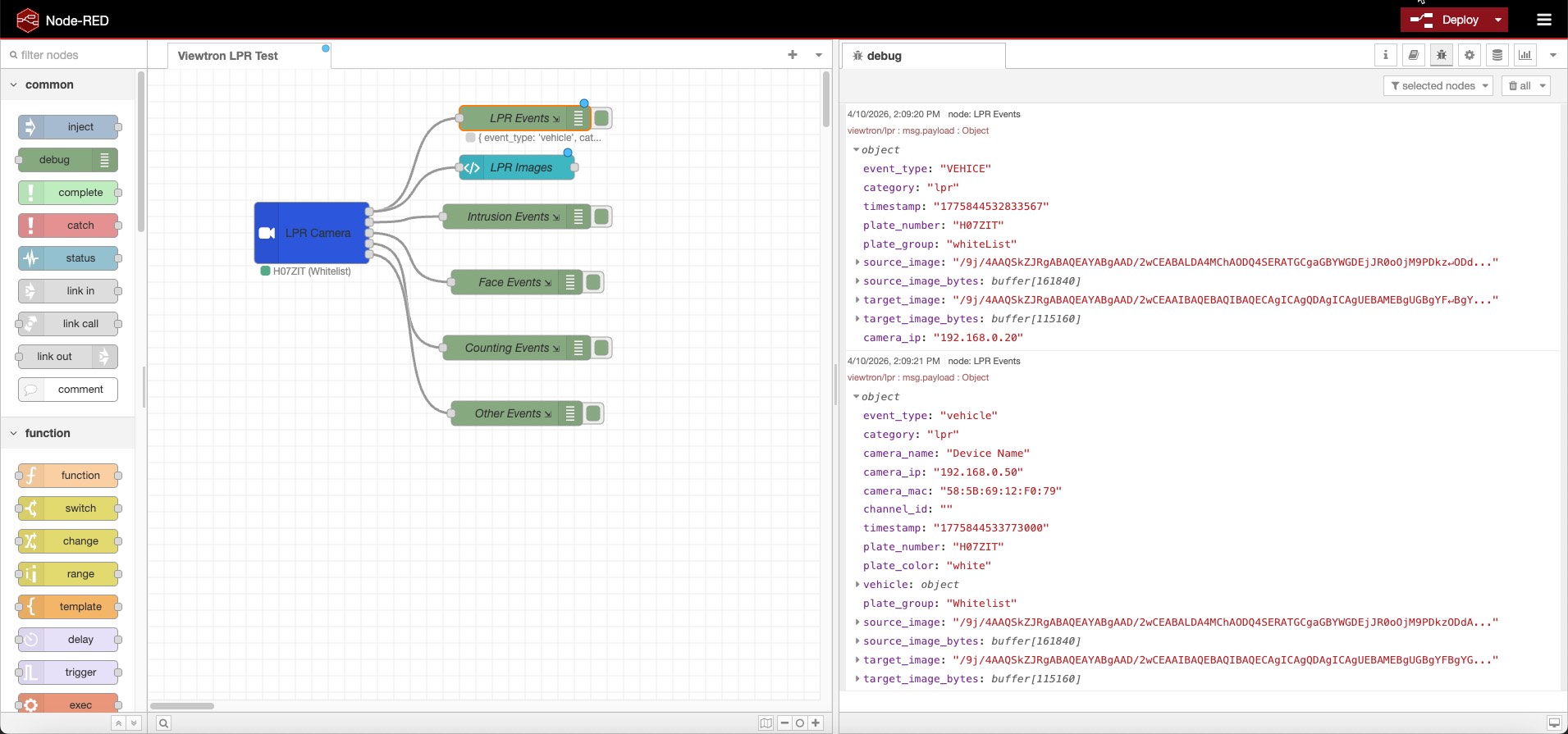
In Node-RED: Menu > Manage palette > Install > search node-red-contrib-viewtron
Or via command line:
cd ~/.node-red
npm install node-red-contrib-viewtron
Requires Node.js 18+ and Node-RED 2.0+. The viewtron-sdk dependency is installed automatically.
v2.0.0 uses a Config Node + Listener Node architecture built on the Viewtron Node.js SDK.
                                    +---> Viewtron AI Camera node ---> LPR Flow
                                    |
Camera 1 ---+                       +---> Viewtron AI Camera node ---> Intrusion Flow
             \                      |
Camera 2 ----+---> Viewtron Server -+
             /    (Config Node)     |
Camera 3 ---+     port 5050        +---> Viewtron AI Camera node ---> Dashboard
                                    |
NVR ---------+                      +---> Viewtron AI Camera node ---> MQTT Bridge
Viewtron Server (config node) — runs a shared HTTP server on a single port. All cameras and NVRs connect to this one server. Handles persistent connections, keepalive heartbeats, XML parsing, and all camera protocol requirements via the SDK. Hidden from the palette; created from the server dropdown on the Viewtron AI Camera node.
Viewtron AI Camera (listener node) — receives parsed events from the server and routes them to 5 category outputs: LPR, Intrusion, Face, Counting, and Other. Multiple listener nodes can share one server. Each listener receives every event from every connected camera. Use standard Node-RED Switch nodes after any output to filter by camera, channel, plate group, or any other field.
No middleware, no bridge, no cloud API. The cameras post directly to Node-RED.
Drag the Viewtron AI Camera node from the palette onto the canvas. Select a Viewtron Server from the dropdown (or create one with the pencil icon). The default port is 5050.
Open your camera's web interface and navigate to Network > Advanced > HTTP Notification.
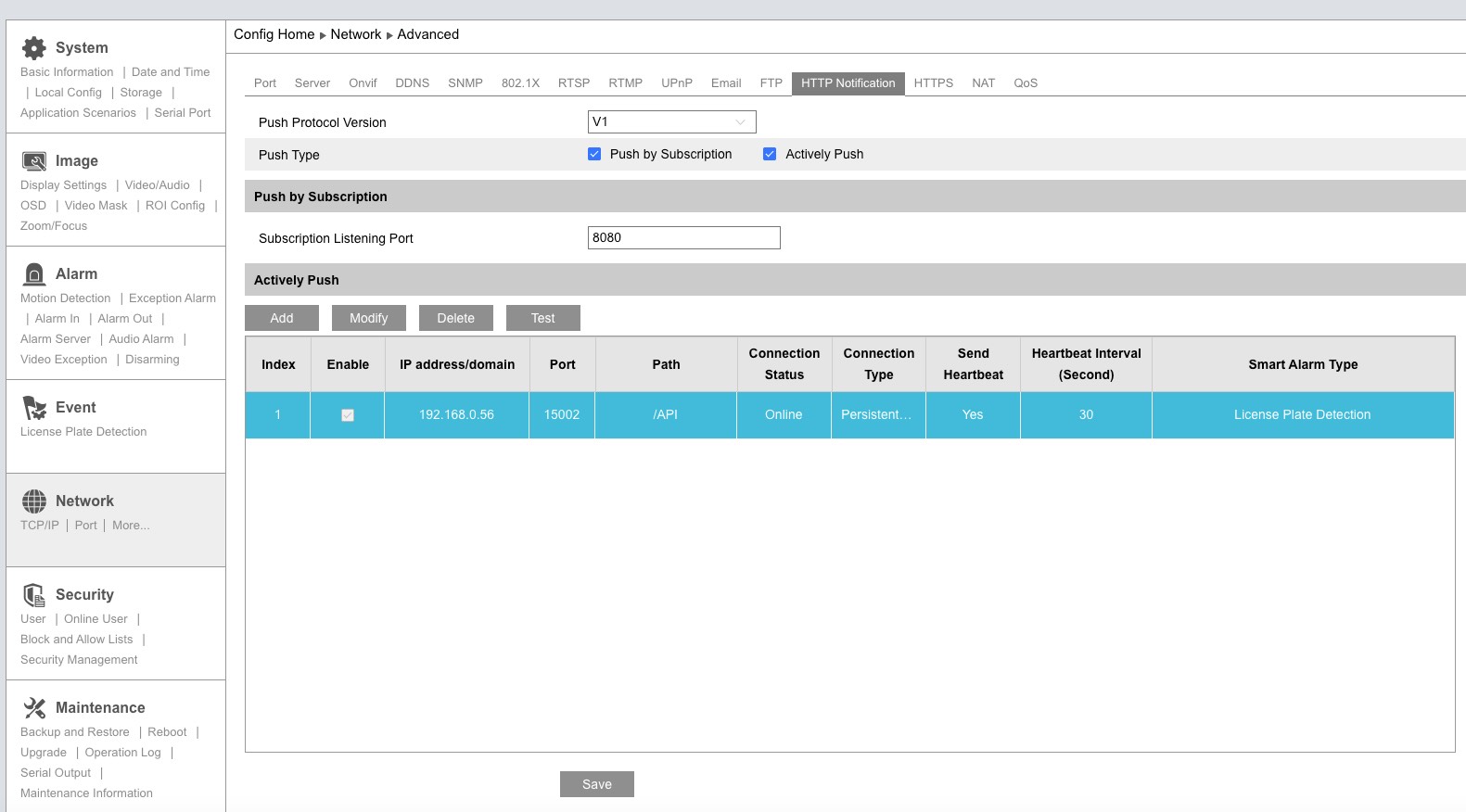
Set the Push Protocol Version to V1, then click Add to create a server entry.
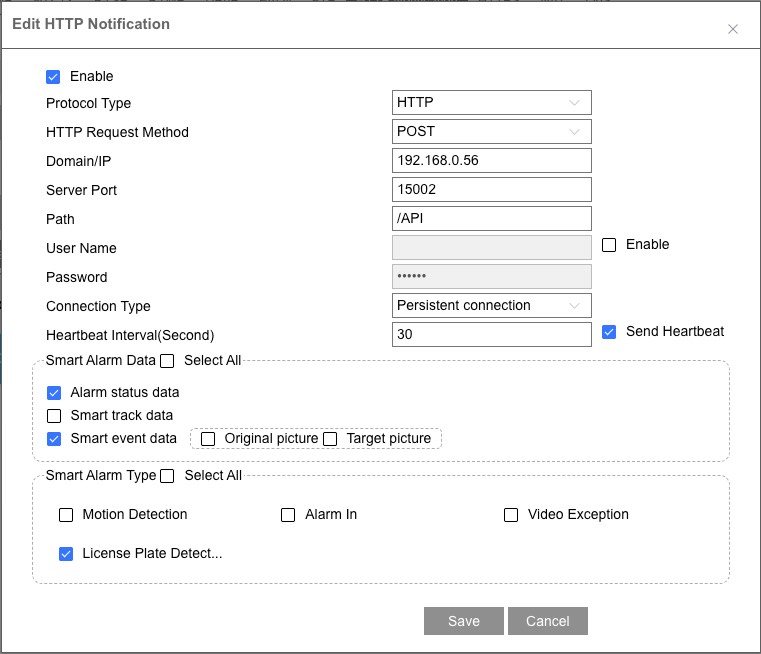
| Setting | Value |
|---|---|
| Enable | Checked |
| Domain/IP | Your Node-RED machine's IP address |
| Server Port | Port configured in the Viewtron Server config node (default: 5050) |
| Path | /API |
| Connection Type | Persistent connection |
| Send Heartbeat | Checked |
| Heartbeat Interval | 30 seconds |
| Smart Alarm Data | Check Smart event data |
| Original picture | Check to include full scene image in events |
| Target picture | Check to include cropped target image in events |
| Smart Alarm Type | Select the detection types you want (e.g., License Plate Detection) |
Click Save, then reboot the camera — required after changing HTTP POST settings. Deploy your flow in Node-RED and events will start arriving immediately.
The camera maintains a persistent HTTP connection and sends heartbeats to confirm the server is reachable. The node status shows a green ring when listening and updates with a green dot and the latest event data (e.g., plate number and group).
For the easiest filtering, connect IP cameras directly to your network and configure each camera's HTTP POST to send events to the Viewtron Server. Each camera connects from its own IP address, so you can filter events using msg.payload.cameraIp in a Switch node.
When cameras are connected to an NVR's PoE ports and the NVR forwards events, all events arrive from the NVR's IP address. Intrusion, face, and counting events include a msg.payload.channelId that identifies which camera on the NVR triggered the event. However, NVR license plate events do not include a channel ID, so there is no way to determine which LPR camera behind the NVR detected the plate.
For LPR cameras, always connect directly to the network so each camera has its own IP address for filtering.
| IPC (Direct) | NVR (Forwarded) | |
|---|---|---|
| Connection | Camera -> Node-RED | Camera -> NVR -> Node-RED |
| XML Version | v1.x | v2.0 |
| Plate detection | Yes | Yes |
| Plate database groups | Fixed: whiteList, blackList, temporaryList | User-defined: any group name |
| Vehicle attributes | No | Yes (brand, color, type, model) |
| Owner from database | No | Yes |
| Channel ID | No | Yes (intrusion, face, counting only — not LPR) |
| Images | Yes (both) | Yes (both) |
The node has 5 outputs, one per detection category:
| Output | Category | Key Fields |
|---|---|---|
| 1 | LPR | plateNumber, plateGroup (raw value from camera/NVR plate database), vehicle (brand, color, type — NVR only), carOwner (NVR only) |
| 2 | Intrusion | targetType (person, car, motorcycle), eventId, status, boundary (area, tripwire — NVR only) |
| 3 | Face | face.age, face.sex, face.glasses, face.mask (NVR only) |
| 4 | Counting | targetType, boundary |
| 5 | Other | Video metadata and unclassified events |
Wire each output to the flow logic you need — separate handling for plates vs. people vs. faces.
| Field | IPC | NVR | Description |
|---|---|---|---|
plateNumber |
Yes | Yes | Detected license plate text |
plateGroup |
Yes | Yes | Plate database group — see Plate Groups |
plateColor |
No | Yes | Plate color (e.g., "white") |
vehicle.type |
No | Yes | Vehicle type (e.g., "sedan", "SUV") |
vehicle.color |
No | Yes | Vehicle color |
vehicle.brand |
No | Yes | Vehicle brand (e.g., "Toyota") |
vehicle.model |
No | Yes | Vehicle model |
carOwner |
No | Yes | Owner name from NVR plate database |
sourceImage |
Yes | Yes | Overview image (base64 JPEG) |
sourceImageBytes |
Yes | Yes | Overview image (Buffer) |
targetImage |
Yes | Yes | Plate crop image (base64 JPEG) |
targetImageBytes |
Yes | Yes | Plate crop image (Buffer) |
Every event message includes:
| Field | Type | Description |
|---|---|---|
msg.payload.source |
string | IPC (direct from camera) or NVR (via NVR) |
msg.payload.category |
string | lpr, intrusion, face, counting, metadata |
msg.payload.eventType |
string | Raw alarm type from camera (e.g., VEHICE, PEA, regionIntrusion) |
msg.payload.eventDescription |
string | Human-readable description of the event type |
msg.payload.cameraIp |
string | Camera IP (direct connection) or NVR IP (NVR connection) |
msg.payload.cameraName |
string | Device name configured on the camera or NVR |
msg.payload.cameraMac |
string | MAC address of the camera or NVR |
msg.payload.channelId |
string | NVR channel number (intrusion, face, counting only — not present on NVR LPR events) |
msg.payload.timestamp |
string | Event timestamp from the camera |
msg.payload.hasImages |
boolean | true when images are present |
msg.topic |
string | viewtron/{category} for easy MQTT republishing |
When Original picture and Target picture are enabled on the camera, events include both base64 strings and decoded Buffer bytes:
| Field | Type | Description |
|---|---|---|
sourceImage |
string | Full scene image as base64 JPEG |
sourceImageBytes |
Buffer | Full scene image as decoded JPEG bytes |
targetImage |
string | Cropped target (plate, face) as base64 JPEG |
targetImageBytes |
Buffer | Cropped target as decoded JPEG bytes |
The Buffer fields are ready to pipe directly to file nodes, dashboard image widgets, or MQTT nodes. The base64 fields are useful for embedding in HTML or sending via API.
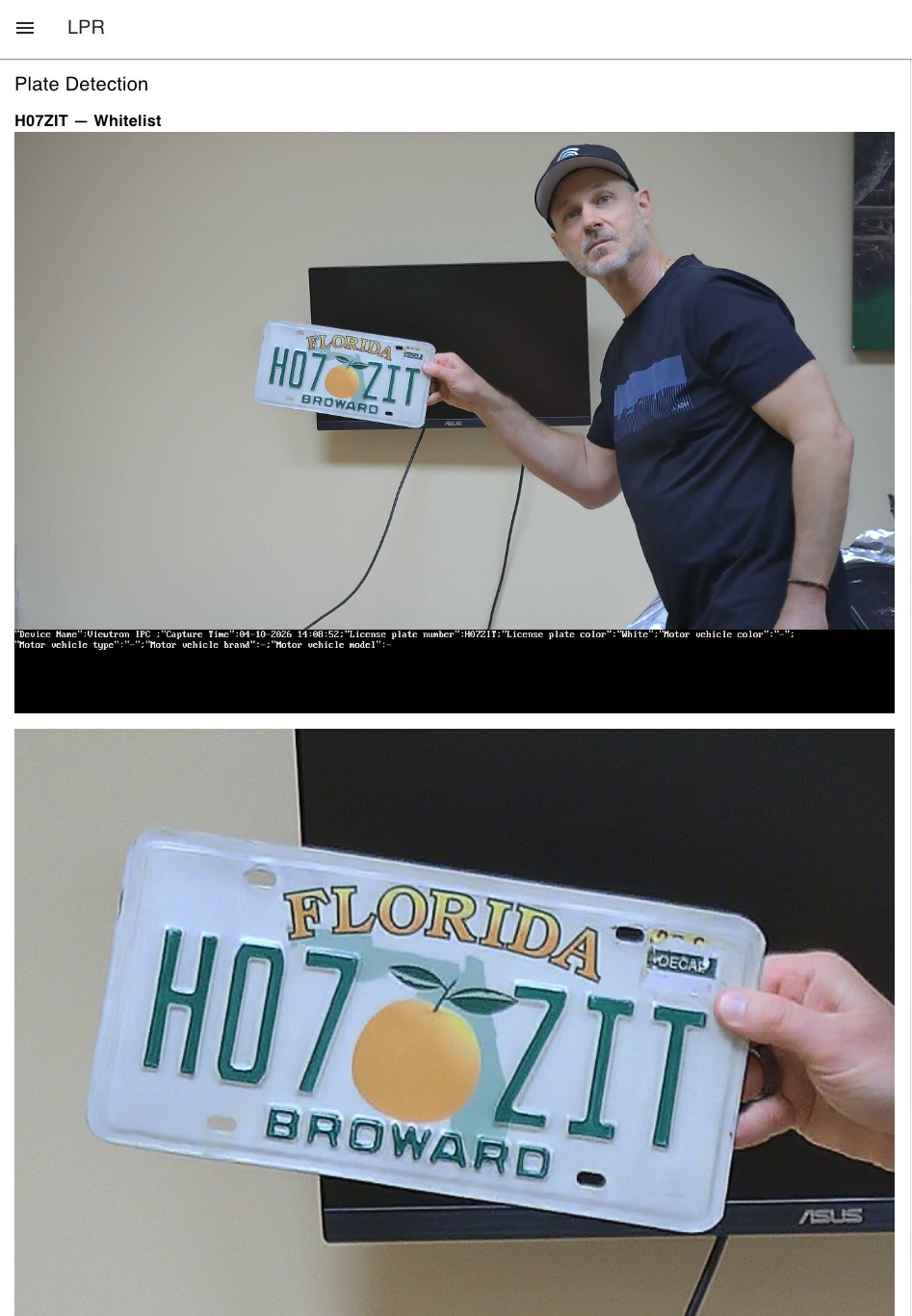
Screenshot of sourceImage and targetImage displayed in a Dashboard 2.0 template widget. To recreate this, wire the LPR output (output 1) to a ui-template node with this content:
<div v-if="msg?.payload?.plateNumber">
  <h3>{{ msg.payload.plateNumber }} — {{ msg.payload.plateGroup || "unknown" }}</h3>
</div>
<div v-if="msg?.payload?.sourceImage" style="margin-bottom:10px">
  <img :src="'data:image/jpeg;base64,' + msg.payload.sourceImage" style="width:100%" />
</div>
<div v-if="msg?.payload?.targetImage">
  <img :src="'data:image/jpeg;base64,' + msg.payload.targetImage" style="width:100%" />
</div>
Requires @flowfuse/node-red-dashboard (Dashboard 2.0).
The node itself does not filter — it outputs every event from every connected camera. Use standard Node-RED Switch nodes after any output to route events.
Common filter fields:
| Field | Use Case |
|---|---|
msg.payload.cameraIp |
Filter by camera IP address (best for direct connections) |
msg.payload.channelId |
Filter by NVR channel number (intrusion, face, counting events only) |
msg.payload.source |
Filter by IPC (direct) or NVR |
msg.payload.plateGroup |
Route LPR events by plate database group |
msg.payload.targetType |
Filter by person, car, motorcycle |
Example: filter LPR events from a specific camera. Wire the LPR output to a Switch node with property msg.payload.cameraIp equals 192.168.1.100.
Import this flow to get started with license plate gate access control. The Viewtron AI Camera node reads plates, and a Switch node routes plates based on their group.
[
    {
        "id": "server1",
        "type": "viewtron-server",
        "name": "Camera Server",
        "port": "5050"
    },
    {
        "id": "viewtron1",
        "type": "viewtron-camera",
        "name": "Gate Camera",
        "server": "server1",
        "wires": [["switch1"], [], [], [], []]
    },
    {
        "id": "switch1",
        "type": "switch",
        "name": "Check Group",
        "property": "payload.plateGroup",
        "rules": [
            {"t": "eq", "v": "whiteList"},
            {"t": "else"}
        ],
        "outputs": 2,
        "wires": [["gate_open"], ["notify"]]
    },
    {
        "id": "gate_open",
        "type": "debug",
        "name": "Open Gate"
    },
    {
        "id": "notify",
        "type": "debug",
        "name": "Alert: Unknown Vehicle"
    }
]The plateGroup field contains the raw value from the camera or NVR plate database. Your flow decides what each group means.
IPC cameras use fixed group names (these are the raw XML values):
| plateGroup | Camera UI Label |
|---|---|
whiteList |
Allow list |
blackList |
Block list |
temporaryList |
Temporary vehicle |
| (empty) | Not in database |
NVRs use user-defined group names — you create groups and name them whatever you want (e.g., "Whitelist", "Residents", "Banned"). The plateGroup field shows the group name, or empty if the plate is not in the database.
Plates are added to the camera's database through its web interface or programmatically via the viewtron Python SDK (pip install viewtron).
| Alarm Type | Category | Detection |
|---|---|---|
VEHICE / VEHICLE |
lpr | License plate recognition |
VFD |
face | Face detection |
PEA |
intrusion | Perimeter intrusion |
AOIENTRY |
zone_entry | Zone entry |
AOILEAVE |
zone_exit | Zone exit |
LOITER |
loitering | Loitering detection |
VSD |
metadata | Video metadata |
PASSLINECOUNT |
counting | People/vehicle counting |
| Alarm Type | Category | Detection |
|---|---|---|
vehicle |
lpr | LPR with vehicle brand, color, type, model |
videoFaceDetect |
face | Face with age, sex, glasses, mask attributes |
regionIntrusion |
intrusion | Perimeter intrusion |
lineCrossing |
line_crossing | Tripwire line crossing |
targetCountingByLine |
counting | Counting by line |
targetCountingByArea |
counting | Counting by area |
videoMetadata |
metadata | Continuous object detection |
Version detection is automatic — the SDK handles both formats.
Any Viewtron AI security camera or NVR with HTTP POST support:
- LPR-IP4 — 4MP LPR camera with on-camera plate recognition. Fully tested with Node-RED.
- AI security cameras — person, vehicle, and face detection. Testing scheduled.
- NVRs — forward events from all connected cameras. LPR tested and working.
All Viewtron products are NDAA compliant.
Camera shows "Online" but no events appear: The camera's persistent connection is alive (heartbeats work) but alarm events may not be flowing. Try:
- Reboot the camera — required after changing HTTP POST settings
- Check that Smart event data and the correct Smart Alarm Type are enabled
- For NVR: ensure License Plate Detection is enabled in the HTTP Post settings
Port conflict ("port in use" status): Another process is already listening on the configured port. Either stop the other process or change the port in the Viewtron Server config node. Only one Viewtron Server config node should use a given port.
Debug tool: A standalone debug server is included for diagnosing connection issues:
node debug-server.js 5050This logs every HTTP POST with full headers, body preview, and post classification (keepalive, alarm data, etc.) — no filtering. Raw XML is saved to raw_posts/ for inspection.
v2.0.0 is a full rewrite. Existing flows will need to be updated.
| Change | v1 | v2 |
|---|---|---|
| Architecture | Single node with embedded HTTP server | Config Node (Viewtron Server) + Listener Node (Viewtron AI Camera) |
| Server | Each node runs its own server | Shared server via config node — one port for all cameras |
| SDK | XML parsing built into the node | Uses viewtron-sdk npm package |
| Default port | 5002 | 5050 |
| Field names | snake_case (plate_number, plate_group, car_owner, camera_ip, event_type, source_image) |
camelCase (plateNumber, plateGroup, carOwner, cameraIp, eventType, sourceImage) |
| Image Buffers | Not available | sourceImageBytes and targetImageBytes (decoded Buffer objects) |
source field |
Not available | IPC or NVR — identifies connection type |
| Image toggle | includeImages checkbox on node |
Always included when camera sends them (enable/disable on the camera) |
| Filtering | Not available | Use Switch nodes on cameraIp, channelId, plateGroup, targetType |
| Node settings | Port + Include images | Server dropdown only (port is on the config node) |
To migrate: Delete the old Viewtron AI Camera node, add a new one from the updated palette, create a Viewtron Server config node, and update any downstream nodes that reference payload field names from snake_case to camelCase.
- Viewtron API Developer Docs — full API reference
- HTTP POST Setup Guide — camera configuration walkthrough with screenshots
- Node.js SDK —
npm install viewtron-sdkfor standalone Node.js projects - Python SDK —
pip install viewtronfor Python projects - Home Assistant Integration — MQTT bridge for Home Assistant
- viewtron-sdk — Node.js SDK for Viewtron camera events (used by this node)
- viewtron-home-assistant — Home Assistant integration via MQTT
- viewtron-python-sdk — Python SDK (
pip install viewtron) - IP-Camera-API — API documentation, XML examples, Docusaurus site
Mike Haldas — CCTV Camera Pros