This project is being gradually upgraded and migrated to ArkStudio. Stay tuned.
Note
ArkStudio is currently under development and will be a more powerful integrated management platform for Arknights game assets. Once completed, this project will reach end of life and stop receiving updates. Thank you for your continued support and enthusiasm.
- Batch unpack game asset objects from Arknights Unity AssetBundle (AB) files.
- Supports the special decompression algorithm for game versions v2.5.04 and above;
- Can distinguish Spine model files for base chibi, dynamic portraits, and battle chibi during unpacking;
- Can store files in separate directories named after their source AB files during unpacking.
- Batch merge RGB channel images and Alpha channel images.
- Batch decode FlatBuffers data files.
- Provides both an interactive CLI and direct command-line execution.
| Type | Description | Export Format |
|---|---|---|
| Sprite | Sprite image | PNG image |
| Texture2D | 2D texture image | PNG image |
| AudioClip | Audio clip | WAV audio |
| TextAsset | Text or binary data | Unspecified |
| Mesh | 3D model | OBJ file |
| TypeTree | Object structure | JSON file |
- Changelog > Click here
- Configuration guide > Click here
- Asset lookup guide > Click here
Whether you want to use our release build or the source code to unpack Arknights assets, you must first obtain the Arknights asset files. Arknights is built with Unity, and all game assets are packaged into AssetBundle files (with the .ab extension, referred to as "AB files" below, though in rare cases the extension is .bin).
📱 Android asset acquisition (expand to read)
The following explains how to obtain Arknights AB files using Android as an example. Android game assets have two parts:
-
One part is provided by the installation package (
.apk). Download it from the Arknights official site, open it with a compression tool (rename the extension to.zipbefore opening), then extract theassets/AB/Androidfolder; -
The other part is provided by hot updates. First ensure the game is updated to the latest version on your phone. Then (USB cable recommended) copy the
Android/data/com.hypergryph.arknights/files/Bundlesfolder from your phone storage to your PC (rename it toAndroid(2)).
[!TIP] For emulator users, you can use the emulator's file sharing feature to copy the folder directly to your PC. If you are familiar with ADB tools, you can also use ADB to copy these files.
At this point, your directory structure looks roughly like this:
Your directory
├─Android
└─Android(2)
Finally, copy the contents of Android(2) into Android and overwrite files with the same name to obtain the complete game assets. After that, you can use our program to unpack the assets.
Of course, you can also copy out some folders from Android to process specific assets only.
💻 PC asset acquisition (expand to read)
The following explains how to obtain Arknights AB files using Windows as an example. Steps:
- Go to the Arknights official site to download and install the Hypergryph launcher.
- In the launcher, download the Arknights PC client. Then launch the game and complete the in-game hot update.
- Close the game and return to the launcher, click the menu button at the bottom right, go to "Game Settings", then click "Open Folder" in the "Game Install Path" section.
- In the
Arknights_Datafolder,StreamingAssets/AB/Windowscontains the initial resources for the PC client, andPersistentData/Bundlescontains the hot update resources. - Follow the Android asset acquisition approach to consolidate the assets.
To help you locate specific asset AB files, we have summarized and listed the contents stored in each subdirectory. Browse this document for details. Note that the content of this document may not be up to date.
To make it easier for general users, we provide an executable for Windows 64-bit (other operating systems are not supported yet).
Please download the exe file ArkUnpacker-vx.x.x_x64.exe from the Releases page: Go to download
Before using this program, you should have a basic understanding of:
The simplest usage is to place the folder(s) to be unpacked (one or more) into the same directory as the program. At this point, the directory structure looks like this:
Your directory
├─Android (Unpacking the entire directory may take a long time)
├─chararts (You can choose to unpack specific subfolders)
└─ArkUnpacker.exe
Then run the program directly. It will open an interactive CLI, and you can follow the prompts.
Tip
After running, the working directory will generate a configuration file ArkUnpackerConfig.json and a log file ArkUnpackerLogs.log. For configuration field descriptions, see this document.
Directly unpacks files in the program directory and performs image merging. Unpacked files are exported to the Unpacked_xxxx folder by default, and merged images are exported to the Combined_xxxx folder by default.
Warning
It is not recommended to use this feature to unpack the entire game asset directory. This may take a long time and consume significant system resources. It is recommended to use this feature only on partial folders, or use custom modes to unpack specific folders.
Unpack game assets from the specified path and export to the specified output directory. You can choose which asset types to export.
Merge RGB images and Alpha images from the specified path, and export the merged results to the specified output directory.
Decode data files in the specified directory and export the decoded results to the specified output directory. For details, see this document.
Unpack game assets from the specified path and export Spine animated character models to the specified output directory.
Unpack Criware USM files (usually containing cutscenes) from the specified path and export the included audio/video files to the specified output directory.
This is a custom feature. See this document for details.
This is a custom feature. See this document for details.
In addition to the interactive CLI shown above, the program also supports running directly via the command line for users who prefer it. Parameters are as follows:
usage: ArkUnpacker [-h] [-v] [-m {ab,cb,fb,sp,cu}] [-i INPUT] [-o OUTPUT] [-d]
                   [--image] [--text] [--audio] [--spine] [--mesh] [--typetree] [-g]
                   [--no-video] [--no-audio] [-l {0,1,2,3,4}]

Arknights Assets Unpacker. Use no argument to run to enter the interactive CLI mode.

options:
  -h, --help            show this help message and exit
  -v, --version         show a version message and exit
  -m {ab,cb,fb,sp,cu}, --mode {ab,cb,fb,sp,cu}
                        working mode, ab=resolve-ab, cb=combine-image, fb=decode-flatbuffers, sp=resolve-spine, cu=resolve-usm
  -i INPUT, --input INPUT
                        source file or directory path
  -o OUTPUT, --output OUTPUT
                        destination directory path
  -d, -delete           delete the existed destination directory first
  --image               in resolve ab mode: export image files
  --text                in resolve ab mode: export text or binary files
  --audio               in resolve ab mode: export audio files
  --spine               in resolve ab mode: export spine asset files
  --mesh                in resolve ab mode: export mesh resources
  --typetree            in resolve ab mode: export typetree JSON files
  -g, --group           in resolve ab mode: group files into separate directories named by their source ab file
  --no-video            in resolve usm mode: skip video processing
  --no-audio            in resolve usm mode: skip audio processing
  -l {0,1,2,3,4}, --logging-level {0,1,2,3,4}
                        logging level, 0=none, 1=error, 2=warn, 3=info, 4=debug
Run ArkUnpacker -h to display this help message. If you run a command without any mode parameter, the program will start in interactive CLI mode.
- In one-click execution mode, the program will not unpack AB files located directly in the program directory; it only unpacks AB files inside subfolders.
- The program automatically adjusts its multiprocessing strategy based on the number of CPU cores, and it requires sufficient device performance (especially CPU and disk). Low-spec machines may run slowly.
- Windows command line basics:
- Shortcut
Ctrl+Cforcibly terminates the program. To copy text, use your mouse to select the text first, then press this shortcut. - Left-clicking the console enters "text selection" mode, and the main process will pause.
- Right-clicking the console pastes text and can also exit "text selection" mode.
- Drag-and-drop files into the console to quickly paste their path.
- Shortcut
- If you want more details or to contribute, please see the developer guide.
This project is licensed under the BSD-3-Clause license. Anyone may freely use and modify the source code in this project, provided that the author credit and original license are retained in the source code or copyright notices, and the project name or author name must not be used for promotion.
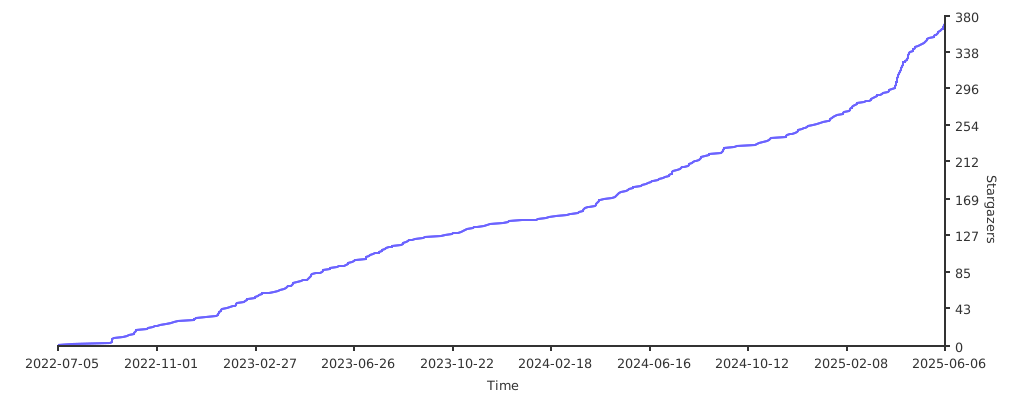
GitHub Stars History Chart