Live preview allows editors to see their content changes in real-time before publishing. When an editor makes changes in the Optimizely CMS, they can instantly preview how those changes will look on your site without leaving the editor interface. This guide walks you through setting up live preview for your Next.js application using the Optimizely CMS SDK.
Before you begin, make sure you have:
- A React framework application set up with the Optimizely CMS SDK (in this example, we'll use Next.js)
- Content types defined and components created for them
- Access to your Optimizely CMS instance URL
- Your Optimizely Graph credentials (single key and gateway URL)
First, create a dedicated route for handling preview requests. In Next.js, create a new file at src/app/preview/page.tsx. This will create a /preview route in your application:
import { GraphClient, type PreviewParams } from '@optimizely/cms-sdk';
import {
  OptimizelyComponent,
  withAppContext,
} from '@optimizely/cms-sdk/react/server';
import { PreviewComponent } from '@optimizely/cms-sdk/react/client';
import Script from 'next/script';

type Props = {
  searchParams: Promise<{ [key: string]: string | string[] | undefined }>;
};

export async function Page({ searchParams }: Props) {
  const client = new GraphClient(process.env.OPTIMIZELY_GRAPH_SINGLE_KEY!, {
    graphUrl: process.env.OPTIMIZELY_GRAPH_GATEWAY,
  });

  const response = await client.getPreviewContent(
    (await searchParams) as PreviewParams,
  );

  return (
    <>
      <Script
        src={
          new URL('/util/javascript/communicationinjector.js', process.env.OPTIMIZELY_CMS_URL).href
        }
      ></Script>
      <PreviewComponent />
      <OptimizelyComponent content={response} />
    </>
  );
}

export default withAppContext(Page);
Let's break down what's happening here:
export default withAppContext(Page);The withAppContext HOC is required for preview mode. It initializes request-scoped context storage for the current routed content. Context lives only for the duration of the request.
In Preview Mode:
- Initializes the context that
getPreviewContentwill populate with preview data - Makes preview data (
preview_token,key,locale,version,mode) available throughout your component tree - Enables access to these values for custom querying or rendering scenarios
- Allows any nested component to retrieve preview context using
getContext()
See Rendering (with React) for details.
const client = new GraphClient(process.env.OPTIMIZELY_GRAPH_SINGLE_KEY!, {
  graphUrl: process.env.OPTIMIZELY_GRAPH_GATEWAY,
});
Initialize the GraphClient with your credentials. These should be stored in your environment variables for security.
Tip
Alternatively, configure the client once in your app's entry point using config() and use getClient() throughout your application. See Fetching Content for details.
const response = await client.getPreviewContent(
  (await searchParams) as PreviewParams,
);
The getPreviewContent method handles all the complexity of fetching the right content version based on the preview parameters sent from the CMS. These parameters are automatically included in the URL when an editor clicks "Preview" in the CMS.
Context data is automatically populated: The getPreviewContent method automatically populates the request-scoped context with preview parameters (preview_token, locale, key, version, mode). This means any component in your tree can access preview data via getContext() without manual extraction. The withAppContext HOC is required to initialize the context - once initialized, getPreviewContent automatically populates it with preview data.
return (
  <>
    <Script
        src={
          new URL('/util/javascript/communicationinjector.js', process.env.OPTIMIZELY_CMS_URL).href
        }
      ></Script>
    <PreviewComponent />
    <OptimizelyComponent content={response} />
  </>
);
Three key components work together here:
-
<Script>- Loads the communication injector script from your CMS. This enables two-way communication between the preview window and the CMS editor interface. Note that this uses Next.js'sScriptcomponent - if you're using a different framework, use standard<script>tags instead. -
<PreviewComponent/>- A client component that handles the real-time preview updates. When an editor makes changes in the CMS, this component receives those updates and triggers a re-render. -
<OptimizelyComponent/>- Renders the actual content using the component you've registered for that content type.
Tip
For Next.js projects, use NextPreviewComponent for optimized preview experience. See Next.js Optimized Preview below.
For Next.js projects, use NextPreviewComponent instead of PreviewComponent for smooth preview experience:
import { NextPreviewComponent } from '@optimizely/cms-sdk/next';

return (
  <>
    <Script
        src={
          new URL('/util/javascript/communicationinjector.js', process.env.OPTIMIZELY_CMS_URL).href
        }
      ></Script>
    <NextPreviewComponent />
    <OptimizelyComponent content={response} />
  </>
);
NextPreviewComponent provides optimized content refresh for Next.js applications, enabling seamless preview updates without full page reloads.
Add the following environment variables to your .env file:
OPTIMIZELY_GRAPH_SINGLE_KEY=your_single_key_here
OPTIMIZELY_GRAPH_GATEWAY=https://cg.optimizely.com/content/v2
OPTIMIZELY_CMS_URL=https://your-cms-instance.optimizely.com
Replace the values with your actual:
- OPTIMIZELY_GRAPH_SINGLE_KEY: Your Content Graph single key
- OPTIMIZELY_GRAPH_GATEWAY: Your Content Graph gateway URL (default shown above)
- OPTIMIZELY_CMS_URL: Your Optimizely CMS instance URL (without trailing slash)
Important
Never commit your .env file to version control. Add it to your .gitignore to keep your credentials secure.
Configure your application hostname and preview settings in the CMS:
- Open your application and go to the Hostnames tab
- Click Add Hostname and enter your application URL:
- For local development:
http://localhost:3000 - For production:
https://yourdomain.com
- For local development:
- Select Use a secure connection (HTTPS) if applicable
- Click Add
- Go to the Live Preview tab
- Select Use Preview Tokens
- Click Enabled under Preview URL format
- A default format is added automatically - edit or add rows for specific content types
- Update the preview URL to point to your preview route:
- For local development:
http://localhost:3000/preview - For production:
https://yourdomain.com/preview
- For local development:
- Click Save
Tip
You can configure different preview URLs for multiple environments (local, staging, production) to test content across different deployment stages.
While this guide focuses on Next.js, the SDK supports preview in other React-based frameworks. The core concepts remain the same:
- Create a preview route that accepts query parameters
- Use
GraphClient.getPreviewContent()to fetch the content - Include the communication injector script
- Render with
PreviewComponentandOptimizelyComponent
The specific implementation details will vary based on your framework's routing and server-side rendering capabilities.
With live preview configured, editors can see their changes instantly before publishing, improving the content editing workflow and reducing errors.
To enhance the preview experience further, consider exploring the Using Preview Utils in Components section below to enable click-to-edit functionality in preview mode.
To enable click-to-edit functionality in preview mode, you need to add preview attributes to your HTML or JSX elements using the getPreviewUtils utility. These attributes allow content editors to click on elements in the preview and navigate directly to the corresponding field or property in the CMS editor.
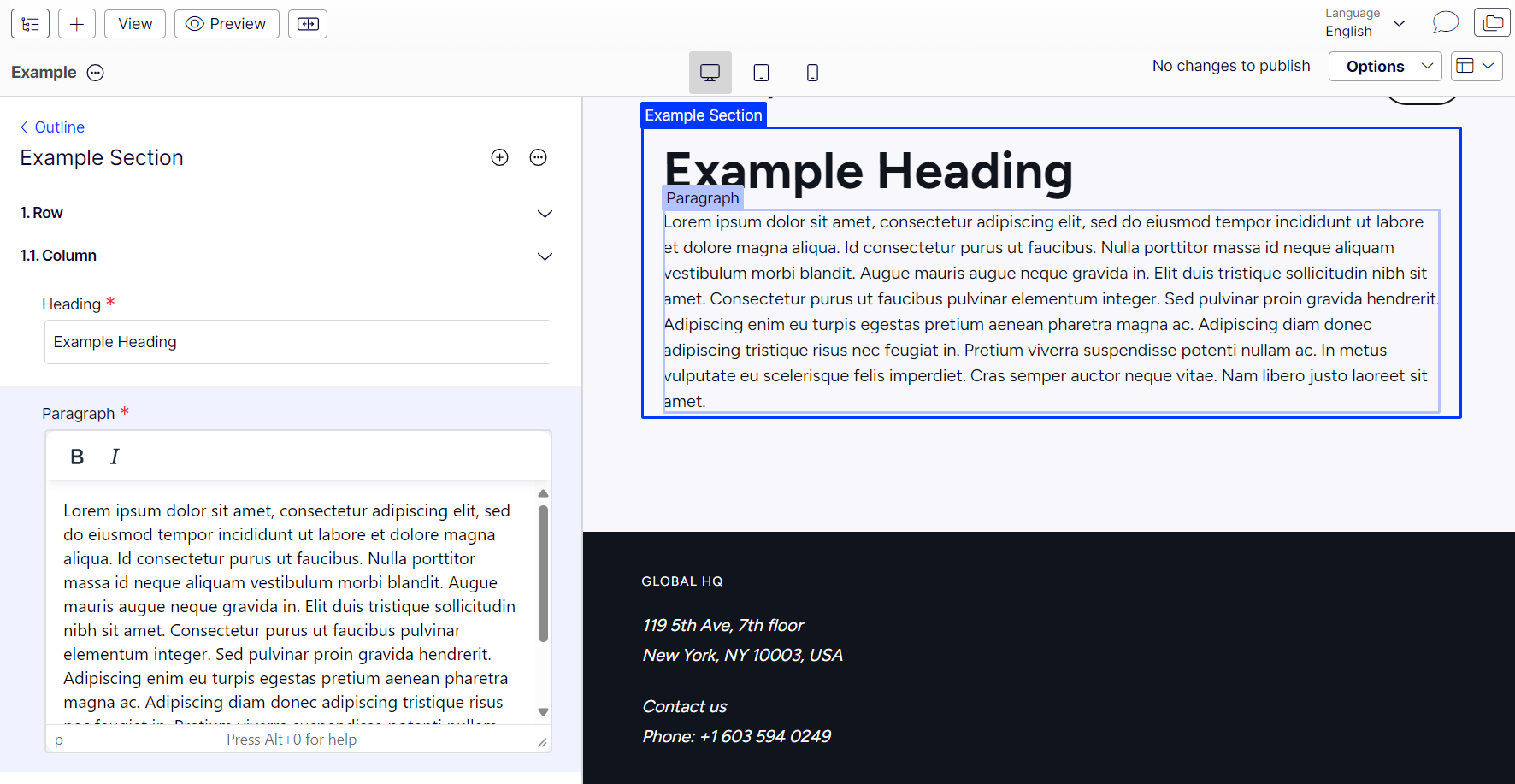
The pa function (short for "preview attributes") enables visual editing in the CMS. When editors hover over elements with these attributes, they're highlighted to show they're editable. Clicking them jumps directly to the corresponding field in the CMS editor.
Here's a complete component that demonstrates both pa for preview attributes and src for resolving content references:
import { contentType, damAssets, ContentProps } from '@optimizely/cms-sdk';
import { RichText } from '@optimizely/cms-sdk/react/richText';
import { getPreviewUtils } from '@optimizely/cms-sdk/react/server';

export const AboutUsContentType = contentType({
  key: 'AboutUs',
  baseType: '_component',
  properties: {
    heading: { type: 'string' },
    body: { type: 'richText' },
    image: {
      type: 'contentReference',
      allowedTypes: ['_image'],
    },
  },
});

type AboutUsProps = {
  content: ContentProps<typeof AboutUsContentType>;
};

export default function AboutUs({ content }: AboutUsProps) {
  const { pa, src } = getPreviewUtils(content);
  const { getSrcset, getAlt } = damAssets(content);

  return (
    <section className="about-us">
      {content.image && (
        <div className="about-us-image">
          <img
            {...pa('image')}
            src={src(content.image)}
            srcSet={getSrcset(content.image)}
            sizes="(max-width: 768px) 100vw, 50vw"
            alt={getAlt(content.image, 'About us image')}
          />
        </div>
      )}
      <h2 {...pa('heading')}>{content.heading}</h2>
      <div {...pa('body')} className="about-us-content">
        <RichText content={content.body?.json} />
      </div>
    </section>
  );
}
Key functions:
pa('propertyName')- Spreads preview attributes onto elements to enable click-to-edit functionality in preview mode. Use this for all content properties (text, rich text, images, etc.). The property name must match your content type definition.src(reference)- Resolves content reference URLs correctly in both preview and published states.
Note
Apply pa() to all content properties to enable the full click-to-edit experience. This allows editors to click elements in the preview and navigate directly to the corresponding field or property in the CMS.
When you wrap your preview route with withAppContext, it initializes request-scoped context for the current routed content. The GraphClient.getPreviewContent() call then extracts preview parameters from the URL and populates this context (via setContext()). Any component in your tree can access this data using getContextData().
import { getContextData } from '@optimizely/cms-sdk/react/server';

export function PreviewBanner() {
  const preview_token = getContextData('preview_token');
  const locale = getContextData('locale');

  // Check if we're in preview mode
  if (!preview_token) {
    return null;
  }

  return (
    <div className="preview-banner">
      <p>Preview Mode - Locale: {locale ?? 'default'}</p>
    </div>
  );
}The context automatically includes:
previewToken- Preview/edit mode authentication tokenlocale- Content locale fromlocparameterkey- Content key identifierversion- Content version fromverparametermode- The modes ('default' | 'edit' | 'preview') fromctxparameter
import { getContextData } from '@optimizely/cms-sdk/react/server';

export function DateDisplay({ date }: { date: Date }) {
  const locale = getContextData('locale') ?? 'en';

  return <time>{date.toLocaleDateString(locale)}</time>;
}
Tip
The RichText component automatically uses preview_token from context to append preview tokens to image URLs, so you don't need to manually handle this.